

After adding contracts to the system, use Rate Audit Results to analyze discrepancies between agreed rates and invoices.
Watch this YouTube video explaining Rate Audit results: https://youtu.be/3xW1SZf8vkY.
The following instructions explain how to view Rate Audit results:
-
Click Contract Management>Rate Audit Results.
-
To view specific details:
-
Select Date Range for the invoice date.
-
Apply filters refer to PSI Apply Filters.
-
Filters do not change Actionable Insights data. Data Type options will be available in the future.
-
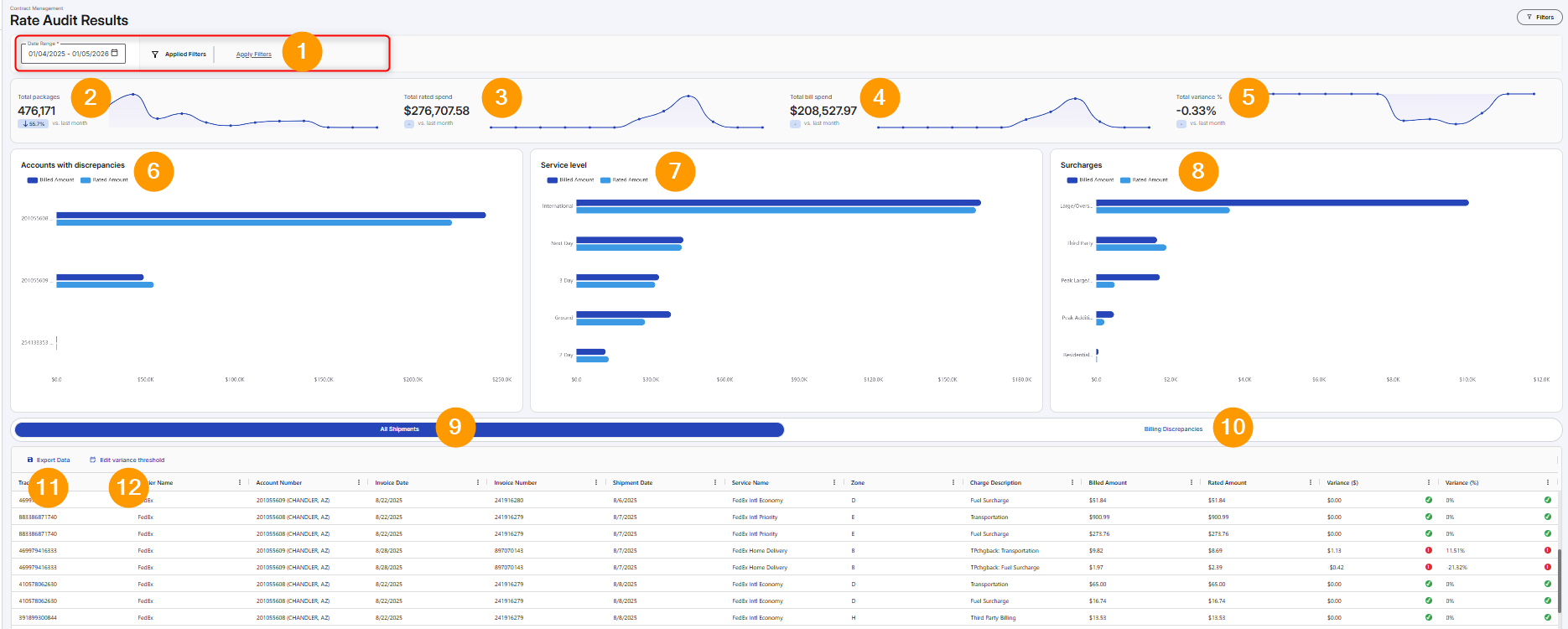
The following numbered graphic and table explain key features:
|
Feature |
Description |
|
|---|---|---|
|
1 |
Date and Applied filters
|
Select date type and date range to narrow data. Use applied filters refer to PSI Apply Filters. |
|
2 |
Total packages
|
Total amount of shipments that have been rated. |
|
3 |
Total rate spend
|
Total amount of carrier charges billed to customer. What you were billed. |
|
4 |
Total bill spend
|
Total amount of carrier charges rated by TransImpact. What you should have been billed. |
|
5 |
Total variance %
|
Percentage (of the rated amount) of the variance between rated and billed amounts |
|
6 |
Accounts with discrepancies
|
Use the bar graph to compare account's billed amount to the rated amount. |
|
7 |
Service level
|
Use the bar graph to compare the service billed amount to the rated amount. |
|
8 |
Surcharges
|
Use the bar graph to compare the surcharged billed amount to the rated amount |
|
9 |
All shipments grid
|
Displays every line item that went through the rate audit process. Click the tracking number to view parcel details. 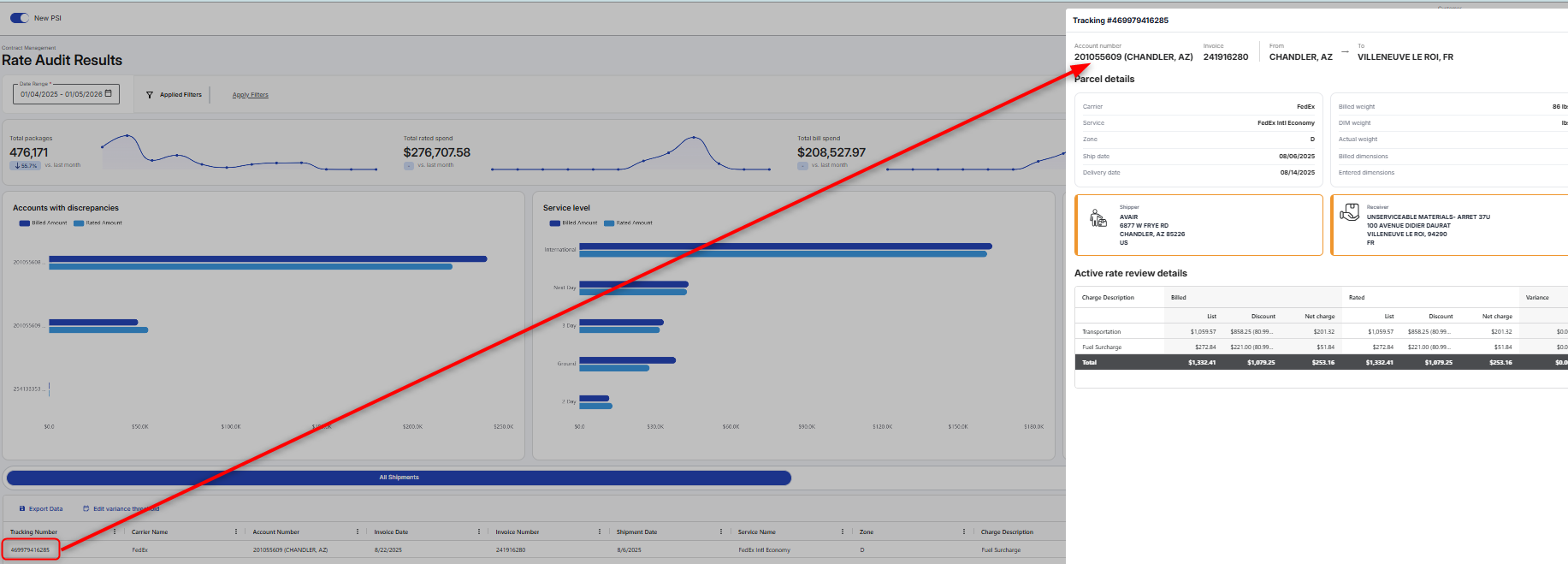
|
|
10 |
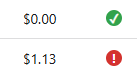
Billing discrepancies grid
|
Click tab to view only records with a variance exceeding the configured threshold.
|
|
11 |
Export Data
|
Click to download excel file of data. |
|
12 |
Edit variance thresholds
|
The variance between billed and rated spends over this value will be flagged as discrepancies. Click to Edit Variance Thresholds:
|