The alerts screen has been updated to match the rest of the application.
Use the alerts feature to prevent fraud. It quickly highlights suspect packages or costs so you can act promptly. Because fraud varies, you can customize alerts to match your business and shipping patterns.
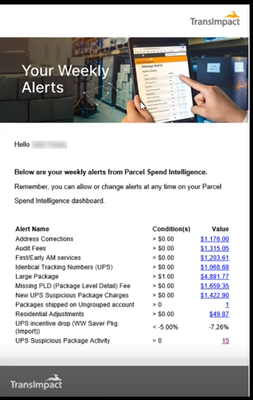
An email is sent out once a week indicating alerts that were triggered.
-
Click Settings>Alerts.
-
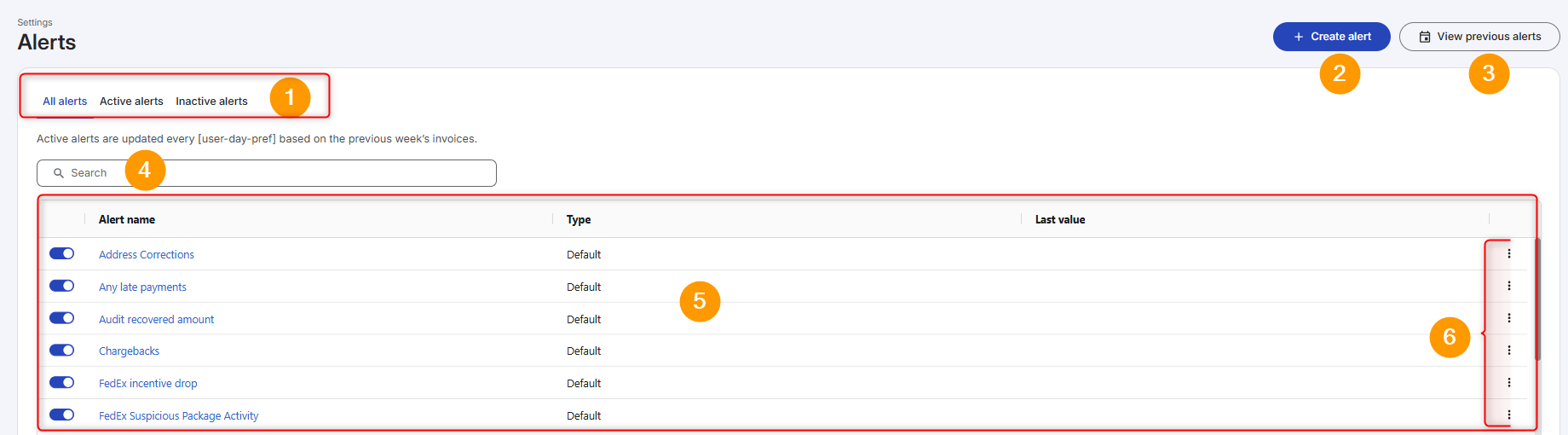
Use following numbered graphic and corresponding table to review and manage your alerts.
|
Feature |
Description & Instructions |
|
|---|---|---|
|
1 |
Alert filters
|
Use the tabs to view alerts: All alerts (defaults) - displays both active and inactive alerts. Active alerts - displays only active alerts. Inactive alerts - displays only inactive alerts. |
|
2 |
Create alert
|
Refer to Create Alert. |
|
3 |
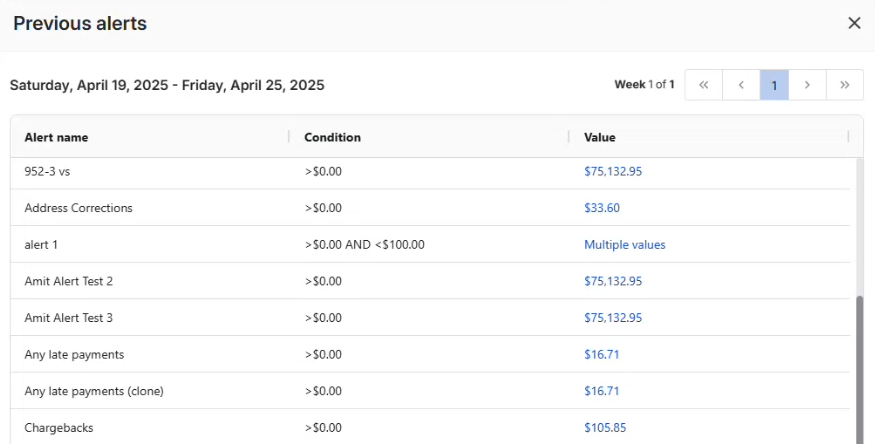
View previous alerts
|
Displays a list of previously sent alerts across all alerts.
|
|
4 |
Search
|
Use the search field to find the name of the alert. As you type the results display. |
|
5 |
Data grid
|

From the All alerts tab, if you turn off an alert it moves to the bottom of the data grid and also can be found in the Inactive alerts tab.

|
|
6 |
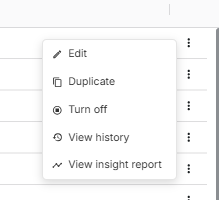
Vertical ellipsis
|
Click to view options. Not all menu options are available for every alert.
|