
Transportation Spend Management (TSM)

Create Alert

  1. From the Alerts page, click Create alert.

  2. Use the following numbered graphic and corresponding table to create a new alert.
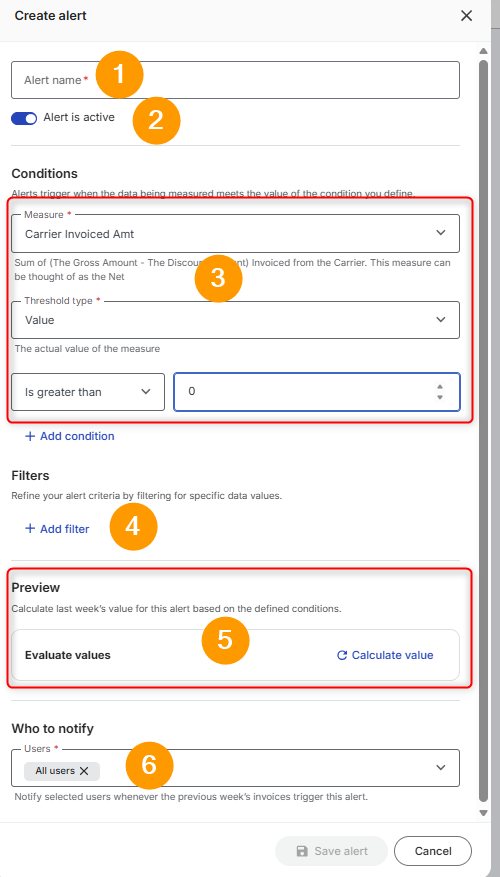
Create alert.png
Create Alert

Field or Section

Instructions

1

Alert name

Enter a description name for the alert.

2

Alert is active

Click to toggle the alert inactive.

3

Conditions

This section determines what will trigger the alert:

  1. Select from the following options:

    1. Measure - data being measured

    2. Threshold type - actual value of the measure

    3. Comparison conditions and value.

  2. If needed, click + Add condition to add more.

4

Filters

Use filters to refine your alert criteria.

  1. Click + add filter.

  2. Select the Data field from the drop-down options.

  3. If needed, click Advance filter toggle.

  4. Select from Evaluate values options:

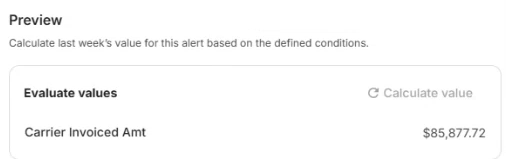
    1. Click Together if you wish the value to be combined.

      Together example.png
      Together Example
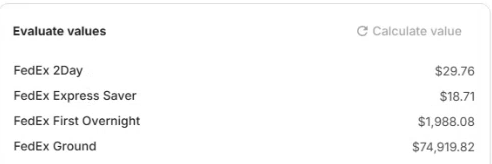
    2. Click Separately to view the values individually.

      Seperate example.png
      Separate Example
  5. Click the down arrow of the Select value fields.

    1. Select items. If needed use the search field, results appear as you type.

    2. Click Confirm.

  6. Click + Add filter to add additional filters.

5

Preview

  1. Click Calculate value to view the results of your selection.

  2. Edit the values as needed and click Calculate value again to test changes.

6

Who to notify

  1. Click the drop-down arrow to view options.

  2. Select users. If needed use the search field, results appear as you type.

  3. Click Confirm.

  1. Click Save alert. The Alerts page displays with the new alert in the grid.