
Transportation Spend Management (TSM)

Manage Alerts

Manage alerts from the Alerts page by clicking the vertical ellipsis at the end of the alert row. Not all menu options appear for every alert. The numbered graphic and corresponding table explain the options.
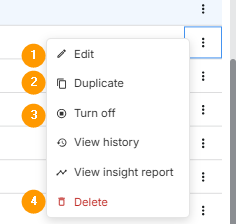
Manage.png

Option

Instructions

1

Edit

  1. Click Edit. The Edit alert drawer displays with the same fields used to create the alert.

  2. Edit as needed.

  3. Click Calculate value to see the changes. Values may change depending on if the alert is custom or default.

  4. Click Save alert.

2

Duplicate

  1. Click Duplicate.

  2. The create alert drawer displays with values from the alert you are duplicating.

  3. The Alert name has (copy) in it, change as needed.

  4. Change values if needed.

  5. Click Save alert.

3

Turn off

Click Turn On/Off to activate/inactive the alert.

This is the same function as clicking the toggle from the Alerts grid row.

4

Delete

  1. Click Delete.

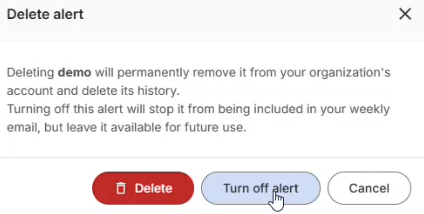
  2. Click Delete to permanently remove the alert. If the alert is enabled, you will be given the option to Turn off alert instead of permanently deleting.

Delete Enabled Alert.png
Delete Enabled Alert